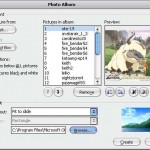
PowerPoint 2007 Tutorial : Add Animations into Presetation Slide

Add animation effect into slide, text, picture, etc,

  • Click animations menu
    • Add transition animation (click in the red circle)

  • Add transition sound (click in the red circle)

Add custom animation

  • Click Animation menu the clicks custom animation

Popularity: 2%


Keyboard Shorcut for Microsoft Word 2007

  • Alt + F : Open office Button Menu
  • Alt + M : Open mailing menu
  • Alt + N : open Insert menu
  • Alt + R : open review menu
  • Alt + S : open references menu
  • Alt + W : Open View menu
  • Alt +F : open home menu
  • Alt +P :Open page layout menu
  • ALT+1 : Go to the previous folder.
  • ALT+2 : Up One Level button: Open the folder one level above the open folder.
  • ALT+4 : Create New Folder button: Create a new folder.
  • ALT+5 : Views button: Switch among available folder views.
  • ALT+F5 : Restore the size of the active window after you maximize it.
  • ALT+PRINT SCREEN : Copy a picture of the selected window to the Clipboard.
  • ALT+SHIFT+TAB : Switch to the previous window.
  • Alt+Tab : Switch to the next window.
  • CTRL+F10 : Maximize or restore a selected window.
  • CTRL+F12 or CTRL+O : Display the Open dialog box.
  • CTRL+F6 : When more than one window is open, switch to the next window.
  • CTRL+SHIFT+F6 : Switch to the previous window.
  • CTRL+W or CTRL+F4 : Close the active window.
  • CTRL+Y : Redo or repeat an action.
  • CTRL+Z : Undo an action.
  • DELETE : Delete button: Delete the selected folder or file.
  • ESC : Cancel an action.
  • F12 : Display the Save As dialog box.
  • F4 or ALT+I : Open the Look in list.
  • F5 : Update the file list.
  • F6 : Move to a task pane from another pane in the program window (clockwise direction). You may need to press F6 more than once.
  • PRINT SCREEN : Copy a picture of the screen to the Clipboard.
  • SHIFT+F10 : Display a shortcut menu for a selected item such as a folder or file.
  • SHIFT+F6 : Move to a task pane from another pane in the program window (counterclockwise direction).
  • TAB : Move between options or areas in the dialog box.

    Popularity: 1%


    Using Mail Merge in the Microsoft Word 2007

    Follow this following to make merge mail in the miceosoft word 2007

    1. Create a new document
    2. Select Mailing menu
    3. Choose Start Mail Merge Icon

    4. Create main document ( letter, email, envelope or etc)
    5. Create or select data source (there is three choice)

      1. Type New List, to create a new data source
      2. Use Existing List, using available data source, like Ms Excell document, Access Database or etc
      3. Select from Outlook Contacts, using data source from Outlook contact
        Continue Reading »
        Using Mail Merge in the Microsoft Word 2007

        Popularity: 1%


    Links : Site Admin | Tutorial Printer Resetter |


    Blogdigger Blog Search Engine Computer Blogs - Blog Catalog Blog Directory Computers Blogs - Blog Top Sites Computers DigNow.org TopOfBlogs Directory of Computers/Tech Blogs